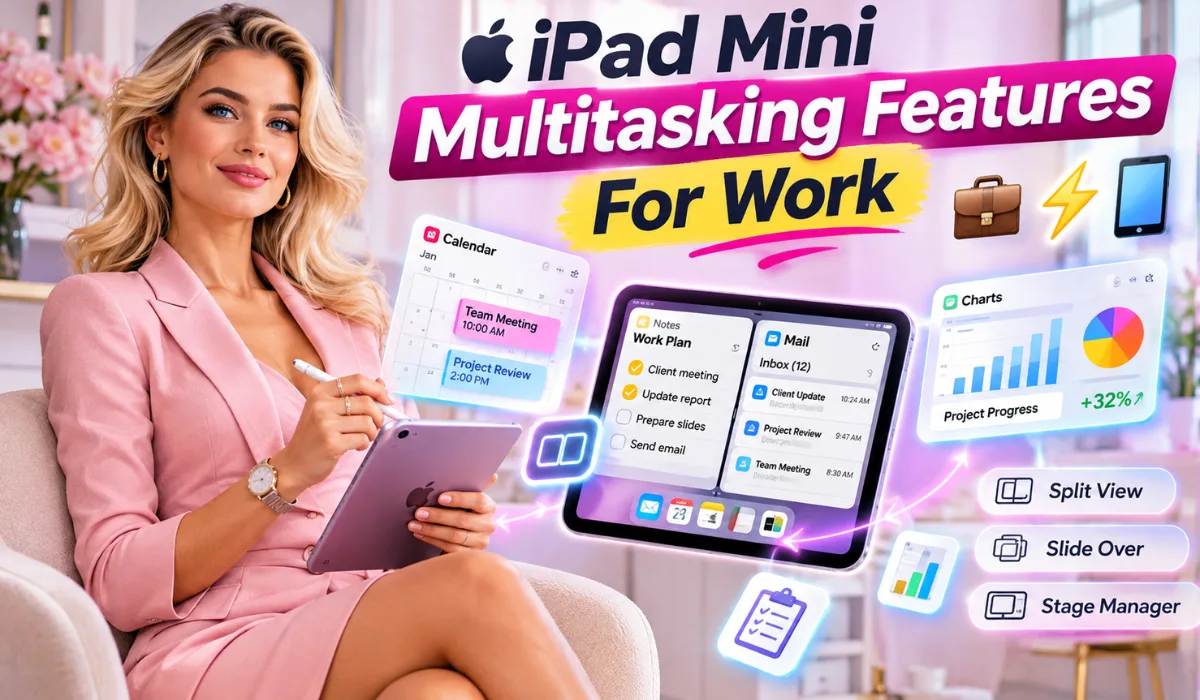
iPad Mini Multitasking Features For Work: Boost Daily Productivity
Big ideas rarely wait for you to sit at a full desk. One minute you are reading a client brief on the metro, and the next you need to check a spreadsheet, jot down action items, and reply to an urgent message before your stop. That is where iPad Mini multitasking features for work shine. This compact screen packs serious speed and flexible windows into a size that fits right in your hand or daily bag. Instead of flipping back and forth one app at a time, you can line up the tools you need side by side and keep your momentum moving. Let us explore how smart screen habits turn a small tablet into a fast, everyday work partner.
What Are the Best iPad Mini Multitasking Features For Work?
Modern iPadOS gives compact screens flexible ways to run apps together. Depending on the iPadOS version and model, users can arrange resizable windows, place apps side by side, or float a quick window on top. What are the best iPad Mini multitasking features for work? Here are the core tools that make daily tasks smoother:
- Windowed Apps and Split View: Run two or more apps at once so you can read a brief on one side and write a reply on the other.
- Slide Over: Keep a floating app—like messaging, a calculator, or calendar—ready to slide in and out without losing your main screen.
- Drag and Drop: Highlight text, grab a photo, or pull a link from one window and drop it straight into another app.
- Quick Note: Swipe up from a bottom corner with a finger or stylus to jot down notes from almost any screen.
- Picture in Picture: Keep a video call or training clip playing in a small corner window while checking notes or spreadsheets.
Read Also: iPad Mini Portable Tablet For Business Travel: A Game-Changer
Why Is the iPad Mini Useful for Multitasking at Work?

Many people assume a small screen slows down real work. In practice, compact size brings big advantages when paired with smart software. Light weight reduces arm fatigue during long commutes, trains, or flights. Instant wake means zero waiting around when a client calls or a quick idea pops up.
Why is the iPad Mini useful for multitasking at work? Because it lets busy people check messages, read documents, and take notes in one hand or on a small tray table. A traditional laptop often needs desk space and a charger nearby. A small tablet slips into a jacket pocket, sling bag, or tote and stays ready all day.
"Portability wins whenever work happens outside a fixed desk. A compact tablet gives workers fast access to notes, browsers, and chat tools without weighing them down." — Rohan Kulkarni, Mobile Workflow Consultant
How to Use iPad Mini Multitasking Features For Work Step by Step
Getting started takes less than a minute. Once you learn a few simple swipes and taps, switching layouts feels natural.
Step 1: Turn On Your Preferred Multitasking Mode
Open Settings and tap Multitasking & Gestures. Choose Windowed Apps (or Stage Manager on supported models and iPadOS versions) so windows can be resized or arranged cleanly.
Step 2: Open Two Apps Side by Side
Launch your first app, such as Safari or Notes. Swipe up gently from the bottom edge to show the Dock, then drag a second app onto the screen or use the window multitasking controls to place them side by side.
Step 3: Use Slide Over for Quick Check-Ins
Drag a third app—like Mail, Messages, or a task tracker—toward the edge of the screen until it floats as a slim pane. Slide it off to the side when you need full focus, then swipe back when you need a quick answer.
Step 4: Drag and Drop Content Between Apps
Select a paragraph, image, file, or web link in one window. Hold your finger on it until it lifts slightly, drag it across to the second window, and release where you want it to land.
Top 10 iPad Mini Multitasking Features For Work
Looking for the biggest time-savers on a small display? These top 10 iPad Mini multitasking features for work cover everyday office tasks, research, and communication:
- Side-by-side document and browser pairing for writing reports while checking sources.
- Floating Slide Over chat or email so quick replies never wipe out your main workspace.
- Instant drag-and-drop links and images between notes, emails, and documents.
- Multiple windows of the same app (such as two Safari tabs or two notes) for comparing details.
- Corner swipe Quick Notes for capturing action items during calls or meetings.
- Picture in Picture video to stay on a call while pulling up project files.
- Spotlight Search to jump straight to files, messages, or apps without hunting through folders.
- Focus Modes to silence distracting alerts during deep work blocks.
- Markup and PDF tools for signing forms or highlighting pages on the go.
- AirDrop and shared cloud folders for fast file transfers with teammates.
Read Also: iPad Mini For Office Work And Productivity: The Ultimate Guide
Best iPad Mini Multitasking Features for Professionals Across Roles

Different jobs demand different habits. A sales rep walking between client visits needs fast look-ups, while a writer or analyst needs clean reference views.
| Professional Role | Helpful Multitasking Setup | Everyday Payoff |
| Writers & Editors | Notes or doc on one side, research browser on the other | Faster drafting without constant app switching |
| Managers & Leads | Calendar or task list in Slide Over, email or chat open | Quick schedule checks while answering team updates |
| Field & Sales Staff | Maps or CRM in main view, Quick Note or PDFs ready | Smooth prep right before client meetings |
| Researchers & Analysts | Two browser windows or PDF plus notes side by side | Easy side-by-side fact checking and summaries |
iPad Mini Productivity Features for Office Work and Workflow Management
Inside an office, a small tablet shines as a companion screen or mobile control center. Keep a dashboard, inbox, or meeting agenda visible while your laptop handles heavy spreadsheets or big presentations.
Strong iPad Mini productivity features for office work start with clean organization. Group work apps together in one area, pin your most-used tools to the Dock, and use cloud folders so files stay synced everywhere.
For steady iPad Mini workflow management for professionals, stick to a simple rule: never keep five open windows on a compact screen. Two or three focused windows keep text large enough to read comfortably without eye strain.
"The best small-screen workflow is intentional. Pick only the two apps you truly need for the next twenty minutes, close the rest, and protect your attention." — Hannah Gallagher, Digital Productivity Coach
iPad Mini Multitasking Tips for Business Users and Entrepreneurs
Business owners and founders juggle dozens of small tasks every hour. Reviewing invoices, approving designs, checking stock updates, and replying to partners often happen between bigger projects.
Using smart iPad Mini multitasking tips for business users helps turn idle minutes into progress:
- Pair two high-value apps: Keep a task board or finance sheet beside your messages or notes.
- Use Quick Note for meeting promises: Link notes back to the app or webpage you were viewing when the idea came up.
- Keep a dedicated Slide Over utility: A calculator, unit converter, or calendar works great as a slide-in helper.
- Automate repeat steps: Use the Shortcuts app to open your morning work apps or log quick updates in fewer taps.
For busy founders, iPad Mini multitasking features for entrepreneurs reduce friction when moving from strategy to quick execution. Instead of waiting until you reach a desk, you can review drafts, check numbers, and send clear instructions right away.
Best Productivity Settings on iPad Mini for Work and Office Setup
A few quick tweaks in Settings make everyday work feel smoother and calmer. Start with notifications so non-urgent pings do not break your train of thought.
Consider these best productivity settings on iPad Mini for work:
- Work Focus: Allow calls and messages from key coworkers while muting social apps and news alerts during work hours.
- Display & Text Size: Adjust text size and brightness so split windows stay crisp and easy to scan.
- Multitasking & Gestures: Keep your preferred window layout enabled and learn quick swipe gestures for switching apps.
- Auto-Lock & Battery: Set a sensible screen timeout and check battery usage so your device lasts through busy afternoons.
If you build a clean iPad Mini multitasking setup for office productivity, add a stand or keyboard only when typing long emails or notes. For reading, reviewing, and quick edits, holding the bare tablet often feels fastest.
iPad Mini Features for Working While Travelling and Everyday Tricks

Travel days test any gadget. Airports, trains, buses, and hotel lobbies rarely offer wide desks or quiet corners. iPad Mini features for working while travelling shine because everything fits comfortably in your hands or a small bag. You can read boarding details, review slides, annotate PDFs offline, and draft replies without opening a bulky laptop.
Simple iPad Mini productivity tricks for everyday office tasks also save time every week:
- Use Spotlight as a launcher: Swipe down on the Home Screen, type the first letters of an app or file, and tap Return.
- Drag links instead of copying and pasting: Pull a link straight into a note or email draft in one smooth motion.
- Sign and mark up PDFs directly: Open a contract or report, add text or a signature, and share it right away.
Read Also: Why iPad Mini For Business Use Is a Game Changer
iPad Mini Multitasking Shortcuts for Faster Workflow and Research
Keyboard shortcuts and quick gestures shave seconds off repetitive actions. If you use an external keyboard, pressing Command + Space opens Spotlight, and Command + Tab switches quickly between recent apps.
Even on touch alone, iPad Mini multitasking shortcuts for faster workflow add up. Swiping along the bottom edge switches apps smoothly, while dragging from the Dock brings up a second window without hunting through menus.
When using iPad Mini for research and business productivity, keep sources on one side and your summary notes on the other. Highlighting facts and dropping quotes straight into your draft keeps research neat and easy to review later.
(Tip: Signing in to a Google Account can also make it easier to save your chat history and pick up research or notes later across sessions.)
Frequently Asked Questions About iPad Mini Multitasking
1. Can you really do serious work on a small tablet screen?
Yes—for writing, reading, research, email, note-taking, reviewing documents, and managing tasks, a compact tablet handles daily work very well. For heavy video editing or giant complex spreadsheets, a larger screen or computer still helps.
2. How many apps can you view at once on an iPad Mini?
Depending on your iPadOS version and window mode, you can arrange multiple windows or run two side-by-side views alongside a floating Slide Over window or Picture in Picture video. Keeping two or three windows visible usually works best on a compact display.
3. Do you need a keyboard or stylus for multitasking?
No. Touch gestures, dragging and dropping, and swiping from the Dock work right out of the box. A stylus is handy for sketching or Quick Notes, and a keyboard helps with long typing sessions.
4. What is the easiest way to switch between two apps quickly?
Swipe left or right along the bottom edge of the screen to flip between recent apps, or keep your second app open in a side window or Slide Over pane for instant access.
.