Business Productivity On iPadOS: How to Work Smarter
Modern workplaces are changing quickly. Nowadays, we require devices that are quick as well as flexible and prepared to travel. Numerous business owners and people are asking whether they should leave their heavy laptops at their homes. Your answer is within your backpack. Tablets aren't used for just watching films and playing video games. When you have the proper setup the tablet could be an effective tool for tasks.
To complete your tasks using your Apple tablet is now easier than ever. The trick is understanding how to make use of the functions built-in to your device effectively. Here's how you can gain access to the most powerful Business Productivity On iPadOS to finish your job faster and more efficiently every day.
What are the latest productivity features in iPadOS?
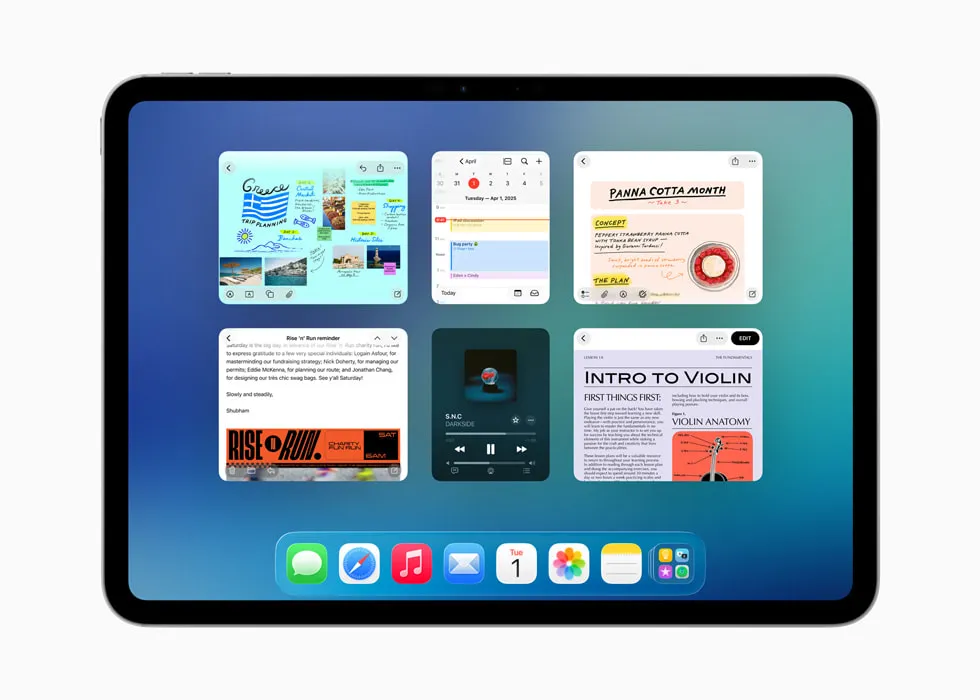
The latest updates to the software totally change the way that tablet operates. Apple introduced a new windows system featuring Liquid Glass style features that let you handle many tasks appear stunning. It is now possible to resize windows as well as stack them up and then view all of them in one go by using an Exposed-style display.
Another major update comes with the new native Preview application. This app provides you with desktop-quality tools for editing PDFs, filling in legal forms, and even use your Apple Pencil for quick markups. Furthermore, Apple Intelligence offers the system-wide live translation as well as automated notes summary. These software tools offer smart technological solutions for businesses to allow you to stay ahead of the curve without the need for a conventional computer.
Why is iPadOS great for project management?
managing a team demands the tracking of timelines, documents, and discussions simultaneously. The iPad is a great choice for this since it blends touch controls and desktop speed.
-
Visual Timelines Dragging task cards into Trello or Asana is easy with fingers or with an Apple Pencil.
-
Split Screen Tracking It is possible to keep the project board in view to the left while you reply to emails from clients to the right.
-
upgraded Files app: The manager for files now features a powerful View of Lists which can be customized with columns that are resizable, customized folders and the capability to define default applications for particular type of file.
The updates made managing business processes incredibly easy for executives in motion.
Read also: Top 10 iPadOS Hidden Features And Tips 2026: Secret iPad
Top 10 Business Productivity On iPadOS Features

For your tablet to become an office-style desk You must use top-quality tools that are built-in to the tablet. This is a comprehensive checklist of features that will maximize the efficiency of your efficiency in business using iPadOS.
1. Stage Manager Window Control
This function lets you operate multiple applications within adjustable windows. It is possible to group similar applications together in work areas and then cycle them through quickly.
2. Desktop-Class Safari Engine
The built-in browser for web pages is able to load real desktop sites which are not resized mobile versions. That means that web-based tools like Google Docs, WordPress, and Shopify perform flawlessly.
3. Apple Pencil Pro Scribble
It is possible to write handwritten notes within any text box and then it instantly converts the handwriting you wrote into typed text. This is ideal to take quick notes in the meetings of clients.
4. Background Task Processing
The operating system can perform demanding tasks such as making videos or exporting large audio files that be run on the background as you check your email.
5. Advanced External Display Support
If you connect your tablet into a screen, it doesn't just mirror the screen. It expands your desktop and gives an enormous dual-screen working station.
6. System-Wide Audio Control
The application comes with sophisticated audio isolation as well as multi-mic settings which ensures that you that your Zoom as well as Microsoft Teams calls sound perfectly crisp and clear.
7. Global Floating Menu Bar
A quick swipe brings up a desktop-style menu bar. You'll have quick access to the app's command options and contextual settings without having to search through the settings.
8. Live Activities Tracking
You can see real-time status indicators on the Lock Screen to track project timelines, deliveries, or delivery statuses that are incoming without having to open individual applications.
9. Quick Note Hot Corners
By swiping upwards at the top right corner using your fingers or stylus will instantly open an empty notepad that lets you write down your thoughts immediately.
10. Universal Control Link
If you're sitting near an Mac and a PC, you'll be able to use only a keyboard and mouse for both devices to work effortlessly, dropping and dragging documents between the two both devices.
Supercharge Workflows: How to save time with iPadOS shortcuts?
The built-in Shortcuts application is a real treasure to help you save time. It is possible to create simple buttons to handle several actions with a single tap. As an example, you could make an automated system called "Start Work Hour." Once tapped, it displays your email, starts your preferred music playlist and blocks non-work messages.
Proficient Shortcut Hint Install an automation that switches Stage Manager to on whenever you start Safari and then turns it off when you launch an application that requires focus. This helps to save your time and energy, while keeping the focus on your primary work.
Best iPad for business and personal use
The right choice for your hardware will depend solely on your work load and your budget.
| iPad Model | Best Used For | Key Advantage |
| iPad Pro (M-Series) | Multi-tasking heavy and video editing, as well as data analysis | Maximum power, 120Hz display |
| iPad Air | Everyday office work email, review of documents, and emails | Price of balance and performance |
| iPad Mini | Quick field notes, reading, travel management | Ultimate portability |
If you are looking for a complete laptop replacement, take a look at the best iPads for business as well as personal usage choices that come with an M-series processor. The chips provide you with full access to high-end external display options and speediest multitasking functions.
Modern Workspace: Using iPad as a business workstation

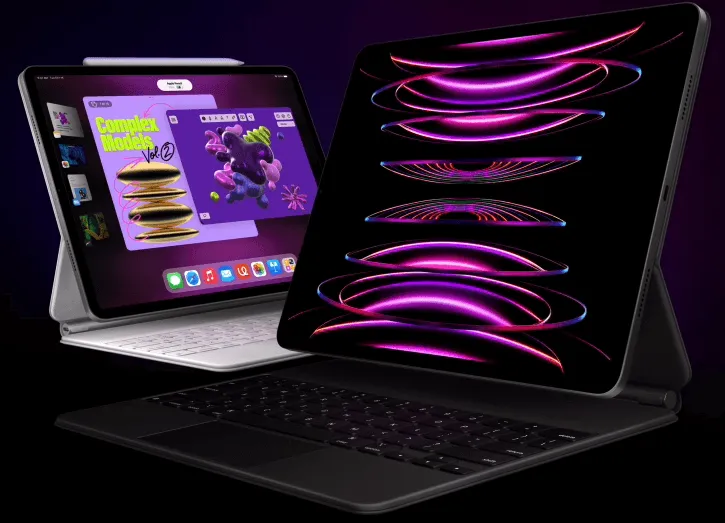
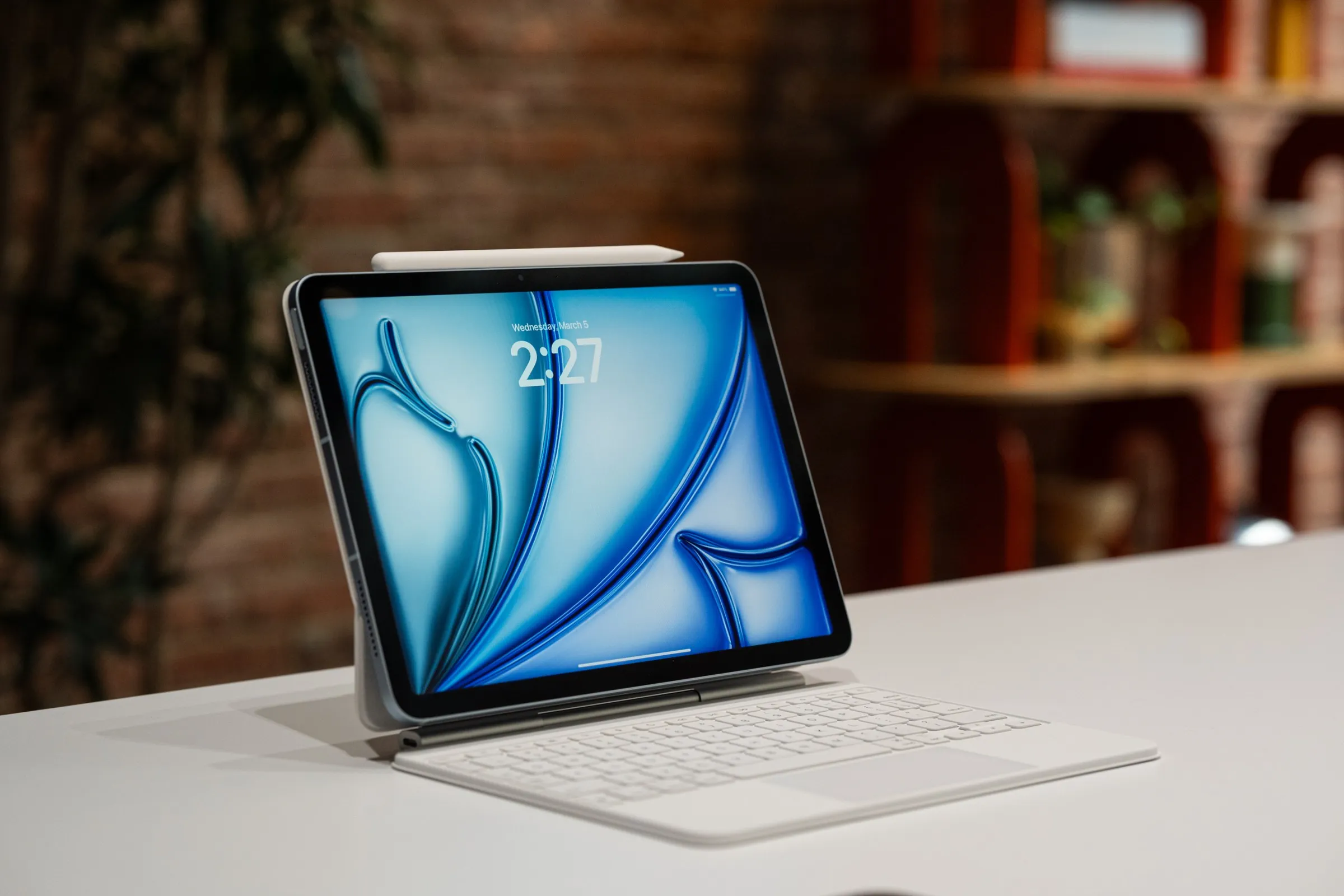
In order to build an excellent iPad to boost productivity at work setup, you'll require all the necessary equipment. The addition of an Magic Keyboard gives you a the experience of typing with a click and also the built-in trackpad.
If you are iPad iPad for business as a workstation approach, you get an enormous benefit in terms of the flexibility. It's possible to type an article at the desk and then take it off its keyboard and draw the design and bring it to a cafe shop to open an e-book. It provides a flexible approach to working which a laptop can't compete with.
Going Big: Enterprise productivity on iPadOS
Many large corporations are now deploying tablets across teams due to the fact that they're highly safe and easy to control. With corporate productivity using iPadOS businesses can employ custom deployment tools for installing secure apps in a seamless manner. Fast data sharing feature, integrated biometric security and longer battery life keeps workers working from remote locations connected.
Replacing a laptop with iPadOS for business
Do you have to throw away the old laptop PC? In the case of most business executives or managers, writers and other employees there is no doubt that the answer is. If you are you replace a laptop with iPadOS in business it changes how you work with your information. It is possible to use touchscreens, typing as well as drawing, instead of using the mouse.
Read also: Your Complete Guide to the iPadOS 18 Release Date
Deep Comparison: iPadOS vs Windows for business work
Choosing between different platforms comes in the form of what you perform each day.
iPadOS Pros & Cons
-
Advantages It starts up immediately without any viruses. It has an incredible battery life, great for reading and drawing.
-
Con: Cannot run older desktop applications (.exe files) as well as limited background files controls compared to PC.
Windows Pros & Cons
-
Advantages The HTML0 platform runs all legacy business software, and is a completely free of charge, and simple to program and code to run.
-
Con: Heavy updates, lower battery life, more prone to slowdowns as time passes.
If you are a regular user of internet-based apps, communications and signing documents Tablets are a great choice. If you're in need of complex coding instruments or huge Excel macros Windows will always be required.
Hardware Showdown: iPad Pro vs MacBook for business
In looking at the comparison between iPad Pro vs MacBook for work consider the workspace you have. It is the MacBook that you are comparing to. MacBook is a sturdy robust Clamshell. iPad Pro iPad Pro is a fluid tablet that can transform into a computer when hooked to an keyboard.
The iPad Pro offers a gorgeous OLED screen, as well as an in-built camera that can scan documents directly to your hard drive. The MacBook has more ports as well as an even larger trackpad. If you are a creative professional who loves drawing ideas, but have to respond to corporate emails and other emails, the iPad Pro is the clear winner.
Step-by-Step: iPadOS productivity guide for professionals
In order to get you going right away, you can follow this easy procedure to set up your tablet to maximize its efficiency.
1.Clean Your Dock:Takes two minutes.
Eliminate all social media and game applications from your lower dock. Make sure you only place the essential applications for work, such as Mail, Safari, and Files.
2.Turn on Stage ManagerTakes one minute.
Scroll down from the upper right to reveal Control Center. Click the Stage Manager icon to enable the resizable window feature.
3.Configure Your Files App:Takes 5 minutes.
Launch the Files app. Switch your layout from List View to List View, and pin your crucial cloud folders on the sidebar.
4.Build Your The First ShortcutTakes about 4 minutes.
Start the Shortcuts application. Design a simple automaton that will open the daily planner application whenever the is in Focus Mode is on.
Industry Insights & Expert Opinions
"The mistake people make is trying to force the iPad to behave exactly like a Mac. Once you embrace touch controls alongside keyboard shortcuts, your daily speed doubles." -- Sarah Jenkins, Digital Workplace Consultant
"We moved our entire real estate sales team to iPad models last year. Document signing, property tours, and database updates are now handled on a single, light device." -- Marcus Vance, Enterprise Operations Director
Frequently Asked Questions
Can I run Microsoft Office on an iPad?
Yes. Microsoft Word, Excel, as well as PowerPoint can be downloaded either as separate applications or in the desktop Safari browser.
How do I use a mouse with my tablet?
It is possible to connect to any Bluetooth keyboard or trackpad using the Settings application under the Bluetooth menu.
Is the entry-level iPad good for business?
Yes. The default iPad manages videos, emails as well as document editing with ease however it isn't equipped with more advanced features for multitasking.
.