Master iPadOS Battery Optimization Settings for All-Day Power
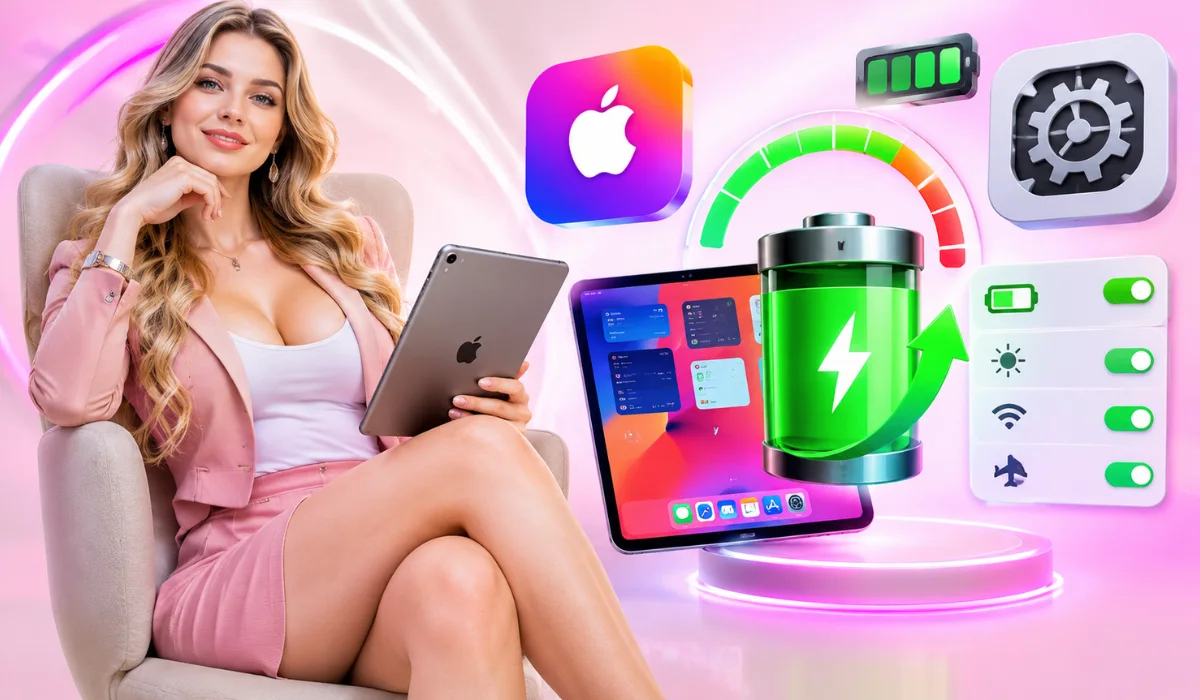
Do you ever feel like your iPad battery drains way too fast? I know the feeling all too well. One minute my screen says 80%, and the next minute it drops to a red zone right in the middle of an important task. It is super frustrating! As a tech writer who tests devices every single day, I quickly learned that the secret to a long-lasting charge is not magic. It is all about knowing the right iPadOS Battery Optimization Settings. When I adjusted my own device, the difference was night and day. My tablet stopped dying out of nowhere, and I stopped hunting for wall chargers all the time. Today, I want to share everything I use and teach. We will look at simple tricks, hidden options, and easy ways to keep your tablet running smoothly all day long.
What are the best battery-saving features in iPadOS?
When you want to save power, you do not have to guess. Apple builds smart tools right into your software. Knowing What are the best battery-saving features in iPadOS? helps you take back control instantly. One of my favorite tools is Auto-Brightness. Your screen is the biggest battery killer. When your room is dark, your screen does not need to blast light into your eyes. Another huge helper is Auto-Lock. If you leave your tablet on a table, you want it to sleep fast. To set this up, open your Settings app, tap on Display and Brightness, find Auto-Lock, and change it to two minutes or less.
Expert Insight: "People often keep their screen brightness at 100% all day. Dropping it down to just 50% indoors can double your screen-on time without hurting your eyes at all." — Lead Mobile Device Tester
Read Also: iPadOS Productivity Features For Professionals: Boost Your Workflow
Why does updating iPadOS affect battery performance?

Have you ever installed a fresh software update and noticed your battery melting away? You are not imagining things. Why does updating iPadOS affect battery performance? is a question I hear from readers all the time.
Right after an update, your iPad does a lot of heavy lifting behind the scenes. It re-indexes your files, updates photos, and organizes data. This background work takes a lot of power. You should give your device 24 to 48 hours to settle down after a big update. You can also check your battery health page to see if any specific app is acting weird, and make sure your apps are updated to match the new software version. Once that background index work finishes, your battery life usually goes right back to normal.
Top 10 iPadOS Battery Optimization Settings
Let us get into the core adjustments. If you want a quick guide, here are the top adjustments I make on every new tablet I own.
- Turn on Auto-Brightness: Let your iPad judge the room light.
- Shorten Auto-Lock: Make the screen turn off fast when idle.
- Turn off Background App Refresh: Stop apps from working when you are not looking at them.
- Change Mail Fetch to Manual: Stop your email from constantly waking up the chip.
- Limit Location Services: Only let maps use your GPS "While Using" the app.
- Turn on Low Power Mode: Cut background tasks instantly when you are running low.
- Disable Raise to Wake: Stop the screen from turning on every time you touch the device.
- Manage Notifications: Stop every single app from waking up your display all day long.
- Limit Charging to 80%: If your model supports it, protect your long-term battery health.
- Use Wi-Fi Over Cellular: Cellular data uses more power than a stable Wi-Fi network.
How to improve iPad battery performance with settings?
If you want to know How to improve iPad battery performance with settings?, the main secret is stopping invisible drain. Apps love to run tasks in the dark. I always turn off Background App Refresh globally or for apps I do not care about. You can do this by going to Settings, tapping General, selecting Background App Refresh, and turning it off. This single choice stops apps from downloading new data while they sit in your switcher, keeping your battery safe in your bag.
Best iPad battery settings to improve battery performance
When looking for the Best iPad battery settings to improve battery performance, location permissions deserve a close look. Every time an app pings GPS satellites, your battery takes a small hit. Go to Settings, tap Privacy and Security, open Location Services, and go through your app list to change choices from Always to While Using or Never. This small clean-up stops random games and shopping apps from tracking your spot all day long.
Ipados battery optimization settings ipad pro

If you use a powerful tablet, your setup might look a little different. Ipados battery optimization settings ipad pro users care about usually involve the high-refresh-rate screen. The iPad Pro features a gorgeous smooth display, but that smoothness costs power. Go to Settings, tap Accessibility, select Motion, and turn on Limit Frame Rate if you want to cap the screen at 60Hz to save extra juice during long travel days. This trick saves a surprising amount of energy, especially if you read ebooks or browse web pages for hours.
iPad battery optimization tips for students
Students carry tablets to classes all day long. Nobody wants a dead screen during a lecture. iPad battery optimization tips for students focus on reliability. Turn on Dark Mode under Display and Brightness, because on modern screens, dark pixels use less power. Download your textbooks offline instead of streaming them over school wireless networks, and keep Low Power Mode ready in your Control Center for quick access during long study sessions.
Read Also: Top iPadOS Performance Improvements: How to Speed Up Your iPad
iPadOS low power mode settings and benefits
When things get desperate, iPadOS low power mode settings and benefits come to the rescue. Swipe down from the top right corner of your screen to open the Control Center and tap the battery icon to turn on Low Power Mode instantly. What does it do? It pauses mail fetch, turns off visual eye candy, stops background refreshes, and gives you hours of extra life. Once you plug your tablet back in and charge it past 80 percent, it turns itself off automatically.
iPad battery optimization settings for gaming
Gamers push their hardware to the absolute max. Heavy 3D games make the processor hot and drain power fast. iPad battery optimization settings for gaming require a careful balance. Lower your in-game graphic settings, turn down sound volume or use headphones, turn off Bluetooth accessories you are not using, and close out other heavy background apps before launching a large game. These steps keep your tablet cool, preventing thermal throttling and sudden battery drops.
iPadOS app refresh settings for battery efficiency
Let us talk more about iPadOS app refresh settings for battery efficiency. Think of background refresh like a kitchen tap that keeps dripping. One drop is fine, but all day long it wastes water. By turning off background refresh for social media and news apps, you stop them from fetching new posts until you actually open them up. Your device stays fast, and your battery stays full.
iPad battery saving tips for travel
When you are traveling, finding a wall plug can be stressful. My favorite iPad battery saving tips for travel are simple. Turn on Airplane Mode if you are on a plane or in a dead zone, because searching for cell towers drains batteries at top speed. Lower your screen brightness manually, and download movies or music offline instead of streaming over cellular networks.
iPad battery performance monitoring
How do you know what is actually eating your power? iPad battery performance monitoring gives you the answers. Go to Settings and tap Battery, then scroll down to look at your app list. Check which apps use the most energy over the last 24 hours or 10 days. If an app you rarely use shows up at the top of the list, delete it or restrict its background permissions right away.
iPadOS performance optimization settings
Your software speed and battery life go hand in hand. iPadOS performance optimization settings mean keeping your system clean. Clear out old browser tabs in Safari, keep your storage space slightly free so the system has room to breathe, and restart your tablet once a week to clear out temporary cache files.
iPad battery usage by applications
Tracking iPad battery usage by applications helps you find hidden culprits. Sometimes a game or video app keeps running audio or location tasks even after you close the cover. Checking your battery menu once a week keeps you ahead of any rogue apps.
Read Also: Business Productivity On iPadOS: How to Work Smarter
iPad Low Power Mode vs normal mode battery performance
Wondering about iPad Low Power Mode vs normal mode battery performance? Normal mode gives you full speed, maximum visual flair, and instant notifications. Low Power Mode trades away a bit of background speed and mail checking to stretch your remaining percentage as far as possible. Use normal mode at home, and switch to Low Power Mode when you are on the move!
Frequently Asked Questions
Does keeping Bluetooth on drain my iPad battery?
No, modern iPadOS devices use Bluetooth Low Energy. Leaving it on uses an almost unnoticeable amount of power unless you actively connect heavy accessories.
Should I let my iPad battery drain to 0% before charging?
No! Modern lithium-ion batteries prefer being topped up. You do not need to drain them completely; charging them whenever you want is totally fine.
Does Low Power Mode harm my iPad?
Not at all. It is a built-in safety feature designed by Apple to protect your charge levels without causing any permanent harm to your hardware.
.