Hidden iPad Features And Useful Shortcuts: 10 Pro Tips to Boost Speed
Most people only use ten percent of what their tablet can actually do. They treat their sleek glass screen like a giant smartphone for watching movies, checking email, or scrolling through social media. Yet buried deep inside the menus are Hidden iPad Features And Useful Shortcuts that can turn a simple tablet into a true desktop powerhouse. When you learn how to unlock these secret tools, everything changes. Tasks that used to take ten taps suddenly happen in one smooth swipe. You save hours every week, reduce finger strain, and feel like a tech wizard every time you pick up your device. Whether you are a student taking class notes, a parent managing a busy household, or an office worker answering emails, these tricks are built for you. Grab your tablet right now and get ready to discover the Hidden iPad Features And Useful Shortcuts that Apple keeps tucked away out of sight.
What Are the Best Hidden iPad Features to Improve Productivity?
Many tablet owners only tap app icons, browse the web, and watch videos. However, best hidden iPad features to improve productivity live inside standard apps like Notes, Files, Safari, and Messages. These built-in tools remove boring, repetitive steps so users can focus on creative ideas instead of hunting through menus.
- Quick Note from Any Corner: Swiping inward from the bottom-right corner with a finger or Apple Pencil instantly opens a floating notepad. It saves links from Safari automatically so users remember where they found important research.
- Built-In Document Scanner: Nobody needs to pay for third-party scanning apps. Inside the Files or Notes app, tapping the camera icon lets users scan paper receipts, homework, or contracts into crisp PDF files.
- Live Text in Photos and Videos: The iPad reads printed words inside any photo or paused video. Users can highlight a phone number on a restaurant sign, tap it to call, or copy text straight from a whiteboard photo.
- Safari Tab Groups: Instead of keeping fifty messy tabs open at once, users can group tabs into folders like "School Project," "Vacation," or "Work." These groups sync across other Apple devices automatically.
- Background Tasks and Live Activities: Modern iPad software lets heavy jobs—like exporting a huge video or downloading large files—keep running safely in the background while you switch to another app.
Expert Insight: "The secret to iPad speed is not buying the most expensive model," says Maya Lin, a senior mobile workflow consultant. "It is learning how to move text and files between apps without ever copying and pasting. Drag-and-drop gestures alone save regular users over thirty minutes every single day."
Read Also: Best iPad Cloud Storage Solutions For Digital Files in 2026
Why Should You Customize iPad Settings Right Away?

Out of the box, your tablet is set up to look pretty on a store shelf, not to help you work fast. Default settings leave your battery draining quickly, let noisy apps interrupt your focus, and hide your best tools behind extra menus. Learning why should you customize iPad settings is the first step toward owning your device instead of letting it own your time.
"A tablet is only as smart as the person who sets it up. Spending just ten minutes tuning your settings can give you back an entire hour of free time every single day." — Marcus Vance, Mobile Productivity Consultant
When you tailor your screen, gestures, and alerts to match your daily habits, friction disappears. You stop hunting for buttons and start gliding through your work. Even better, customizing your tablet protects your personal data and keeps your battery healthy for years to come.
iPad Settings You Should Change Immediately for Speed and Battery Life
Before diving into fancy gestures, fix the basic iPad settings you should change immediately. These quick toggles make your screen feel snappier and help your battery last from morning until night.
- Turn Off Background App Refresh: Open Settings > General > Background App Refresh and switch it off for apps you rarely use. This stops social media and shopping apps from secretly sucking up battery life and data while you sleep.
- Enable Auto-Brightness and True Tone: Go to Settings > Display & Brightness and turn on True Tone. Your screen will match the lighting in your room, which prevents tired eyes during late-night reading sessions.
- Set Up Focus Modes: Open Settings > Focus to create custom profiles like Work, Study, or Family Time. You choose which people and apps can buzz your screen, silencing distractions when you need to concentrate.
- Limit Battery Charging to 80%: Under Settings > Battery > Battery Health, turn on the charge limit option. Keeping your battery between twenty and eighty percent slows down chemical aging and keeps your tablet running like new.
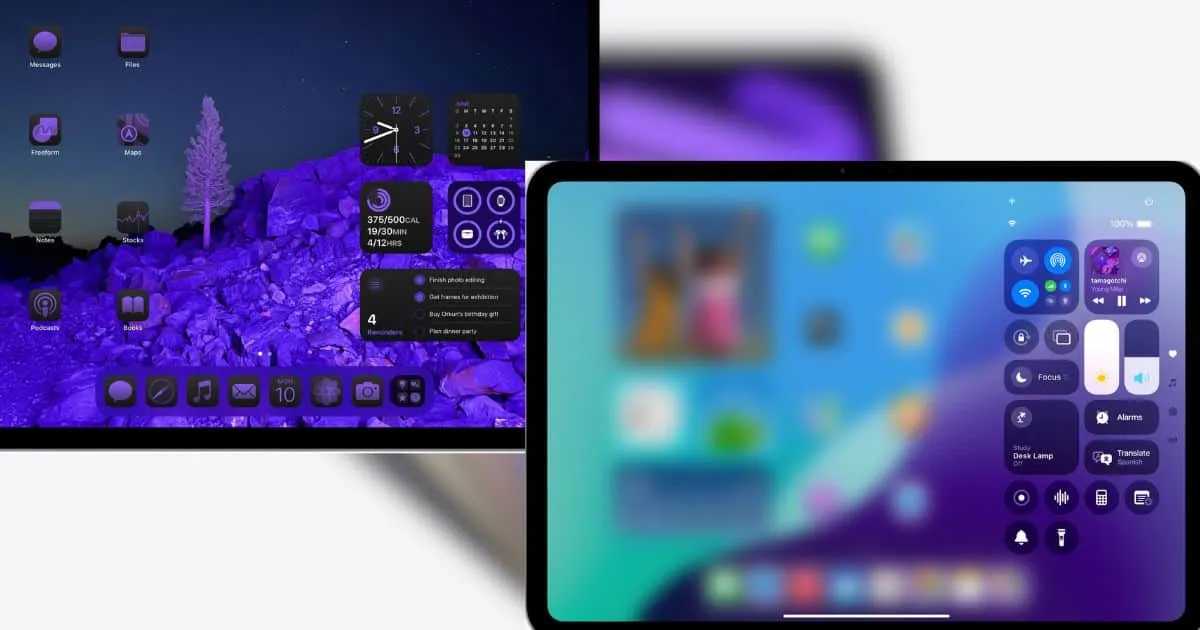
- Customize Your Control Center: Head to Settings > Control Center and add quick buttons for Screen Recording, Text Size, Dark Mode, and Notes. One swipe down from the top-right corner gives you instant access to these tools.
Top 10 Hidden iPad Features And Useful Shortcuts Every User Needs
Once your settings are tuned up, it is time to play with the fun stuff. These Top 10 Hidden iPad Features And Useful Shortcuts are the secret weapons that power users rely on every single day. Try each one as you read along!
1. The Secret Keyboard Trackpad Trick
Typing on a glass screen can make fixing small spelling mistakes feel frustrating. Trying to tap your finger right between two tiny letters rarely works on the first try. Luckily, your on-screen keyboard hides a built-in laptop trackpad.
Press and hold your finger down on the Spacebar until all the letters on the keys turn blank gray. Without lifting your finger, slide it around the screen. You will see the blinking text cursor glide smoothly through your words with pinpoint accuracy.
2. Swipe Down on Keys for Instant Numbers and Symbols
Constantly tapping the 123 button just to type a comma, a question mark, or a number slows down your typing speed. Look closely at your on-screen keys and you will notice faint gray numbers and symbols sitting right above the letters.
Instead of switching keyboard pages, just touch a letter key and flick your finger straight down. Flicking down on the E key types the number 3, while flicking down on the M key types a question mark. Once your thumb gets used to this hidden iPad keyboard shortcut for faster typing, you will never go back.
3. Pinch to Shrink Your Keyboard for One-Handed Typing
Sometimes you are holding a coffee cup in one hand and trying to reply to a message with the other. Reaching across a wide tablet screen with one thumb feels nearly impossible.
Place two fingers on your on-screen keyboard and pinch them together inward. Your giant keyboard instantly shrinks into a tiny, iPhone-sized floating keyboard. You can drag this mini keyboard anywhere on the screen using the gray bar at the bottom, and swipe your thumb across the letters to type effortlessly. To bring back the full keyboard, just pinch outward with two fingers.
4. Double and Triple Back Tap Gestures
Did you know the back of your tablet can act like a secret magic button? Inside the accessibility menus sits a feature called Back Tap.
Open Settings > Accessibility > Touch > Back Tap. You can set a Double Tap on the back logo to take a screenshot, and a Triple Tap to open your camera or mute your volume. Even through a protective case, your tablet feels the gentle tap and triggers your shortcut right away.
5. Quick Notes From Any Corner of the Screen
Inspiration strikes fast, and hunting for a notebook app wastes precious seconds. You can summon a sticky note over any app or website in less than one second.
Place your finger or stylus at the very bottom-right corner of your screen and swipe diagonally toward the center. A Quick Note window pops right up. If you are reading an article in Safari, tap Add Link at the top of the note to save the webpage automatically. Next time you visit that exact website, your note thumbnail will appear in the corner to remind you what you wrote!
Read Also: Top iPad Operating System Features to Boost Your Productivity
6. Drag and Drop Anything Across Different Apps
Moving photos, links, or text between two apps used to mean copying, switching apps, pasting, and switching back. Your tablet lets you grab items with one finger and drop them straight into another app like pieces of paper on a desk.
Tap and hold a photo in Safari until it lifts slightly under your finger. Keep holding it down while using your other hand to swipe up from the bottom of the screen to open your Notes or Mail app. Lift your finger, and the photo drops right into your document. You can even tap extra photos with a second finger to gather a whole stack before dropping them all at once!
7. Live Text: Copy Words Straight Out of Photos and Videos
Have you ever taken a photo of a Wi-Fi password on a router, a phone number on a poster, or notes on a classroom whiteboard? You never need to type those letters by hand again.
Open any picture in your Photos app—or even pause a video—and tap and hold directly on the words inside the image. Your tablet recognizes the text instantly. You can highlight, copy, translate, or even tap a phone number inside a photo to place a call.
8. Built-In Document Scanner Inside the Files and Notes Apps
Throw away those paid scanner apps cluttering your home screen. Your tablet already has a crystal-clear document scanner hiding inside the Notes and Files apps.
Long-press the Notes icon on your home screen and tap Scan Document. Point your camera at any paper receipt, homework sheet, or contract. The camera automatically snaps the photo, flattens crooked edges, removes shadows, and saves it as a crisp PDF ready to sign or email.
9. Three-Finger Pinch to Copy, Cut, and Paste
Highlighting text and waiting for the tiny black Copy / Paste bubble to pop up feels slow. Instead, learn the three-finger pinch gesture. After selecting your text, pinch three fingers inward on the screen like you are picking up the words. A little banner at the top confirms Copy. Move to your new document and spread three fingers outward on the screen to Paste the text instantly. Pinch inward twice with three fingers to Cut text instead.
10. Shake or Swipe Three Fingers to Undo Mistakes
Accidentally deleted an entire paragraph you just wrote? Do not panic! Place three fingers anywhere on the screen and swipe to the left. Your deleted text pops right back into place. Swipe right with three fingers to Redo the action if you change your mind.
How Do You Enable Hidden Multitasking Features on an iPad?
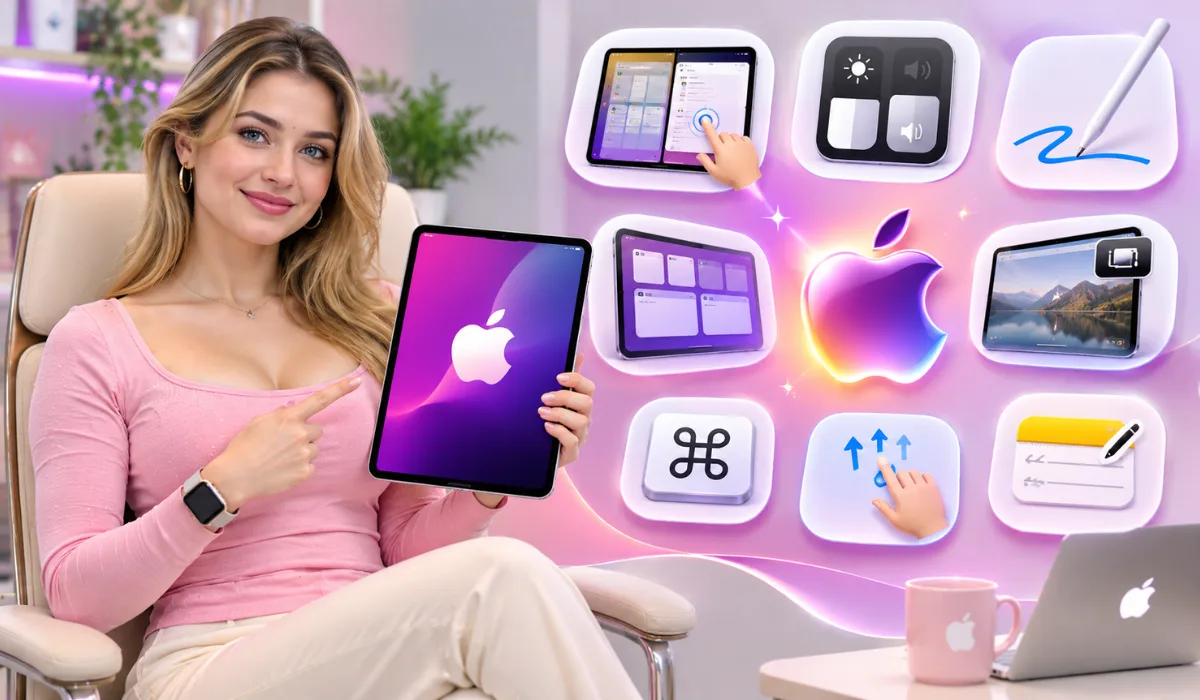
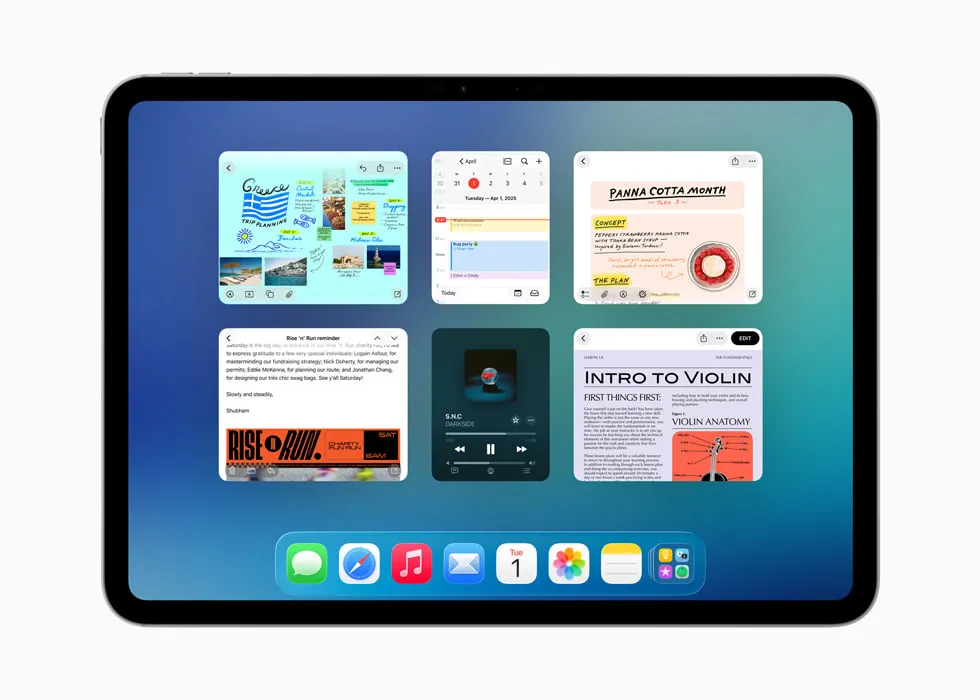
One of the biggest questions new users ask is: how do you enable hidden multitasking features on an iPad? Seeing two or three apps running side-by-side on one screen makes your tablet feel like a true laptop replacement. Yet Apple hides these controls behind three tiny dots at the very top center of your screen.
Look at the top edge of any open app and tap the three small dots (...). A neat menu drops down showing three layout icons: Full Screen, Split View, and Slide Over. Tapping these icons unlocks true hidden iPad features to improve everyday productivity.
iPad Split Screen Shortcuts and Productivity Tips
Using iPad split screen shortcuts and productivity tips lets you read research on one half of your display while typing your report on the other half. Here is the fastest way to set up your workspace:
- The Dock Drag Method: While inside your first app, swipe up gently from the bottom edge of the screen to reveal the Dock. Touch and hold a second app icon from the Dock, drag it all the way to the left or right edge of the screen, and let go. Both apps now sit side-by-side.
- Resize Your Windows: Grab the vertical black bar in the middle between the two apps and slide it left or right. You can give one app two-thirds of the screen while keeping the other app in a narrow column.
- Open a Floating Slide Over Window: Drag a third app from your Dock and drop it right in the middle of your split screen. It opens as a tall, floating iPhone-sized window. Swipe it off the right edge of the screen to hide it, and swipe from the right edge anytime you want to bring it back.
- Mastering Stage Manager: If you own a modern iPad Air or iPad Pro, open Control Center and tap the Stage Manager icon (it looks like a big square with three small boxes on the left). Stage Manager lets you resize overlapping app windows freely and even connect your tablet to an external monitor for a massive dual-screen desk setup.
| Multitasking Mode | Best Use Case | How to Activate Fast |
| Split View | Writing notes while watching a video or reading a webpage | Tap the top ... menu and choose Split View |
| Slide Over | Quickly checking messages, calculator, or music without leaving work | Drag an app from the Dock onto the center of your screen |
| Stage Manager | Running four or more overlapping windows like a desktop computer | Swipe down Control Center and tap Stage Manager |
| Picture-in-Picture | Watching a tutorial or game while browsing other apps | Swipe up to go home while a video is playing in full screen |
Essential iPad Shortcuts for Daily Productivity and Faster Workflow
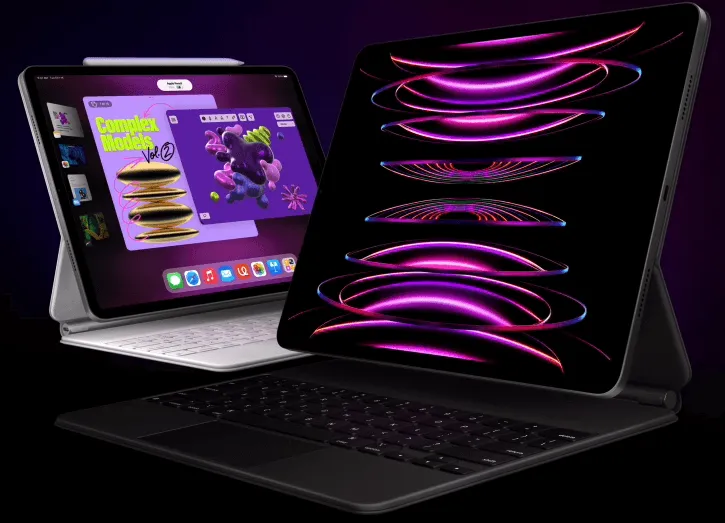
If you pair your tablet with a Bluetooth keyboard or an Apple Magic Keyboard, your speed multiplies overnight. Memorizing a few essential iPad shortcuts for daily productivity means your hands never have to leave the keys to touch the screen.
"The secret to flying through your daily workload on a tablet is keeping your fingers on the home row. Once muscle memory kicks in for Command-Space and Command-Tab, you work twice as fast without even thinking about it." — Elena Rostova, Apple Ecosystem Specialist
Hidden iPad Keyboard Shortcuts for Faster Typing and Navigation
Hold down the Command (⌘) key on any physical keyboard for two seconds while inside any app. A giant cheat-sheet window pops onto your screen showing every single shortcut available for that specific app! Here are the universal iPad shortcuts for faster workflow management that work everywhere:
Command + Spacebar: Opens Spotlight Search from anywhere. Type the first two letters of an app, a file, a contact, or even a math problem like45 * 18to get instant answers.Command + Tab: Cycles smoothly between your recently opened apps, just like on a Mac or Windows laptop.Command + H: Takes you straight back to the Home Screen from any app.Command + Shift + 3: Snaps an instant full-screen screenshot.Command + Shift + 4: Takes a screenshot and immediately opens the Markup editor so you can circle details or sign your name before sharing.Globe Key + Q: Opens a Quick Note immediately without touching the screen corners.Globe Key + Control + Left/Right Arrow: Snaps your active window into left or right Split View automatically.
Building One-Tap Automations With the Shortcuts App
Apple includes a free app called Shortcuts that acts like a personal robot assistant. You do not need to know how to write computer code to build amazing workflows. Open the Shortcuts app and tap the Gallery tab at the bottom. You can add pre-made buttons with one tap:
- Morning Briefing: Reads out the weather forecast, your first calendar meeting, and top news headlines when you turn off your morning alarm.
- Convert Photos to PDF: Selects multiple pictures from your album and merges them into one clean PDF file in two seconds.
- Focus Timer: Silences all notifications, turns on calming background music, and sets a 25-minute countdown timer so you can finish your homework or project without distractions.
Hidden iPad Features for Business Professionals and Students

Modern offices and classrooms rely heavily on tablets because they are light, fast, and last all day. Using hidden iPad features for business professionals helps you look organized in meetings and finish heavy projects before lunch.
Turning Handwriting Into Neat Typed Text With Scribble
If you own an Apple Pencil or compatible stylus, you never have to put it down just to type a web address or send an email. Turn on Scribble under Settings > Apple Pencil. Now, you can write with your stylus directly inside any search bar, text message box, or spreadsheet cell. Your tablet converts your messy handwriting into clean typed words in real time. Want to delete a word? Just scratch it out with your pencil. Want to join two words together? Draw a vertical line between them.
Universal Control and Sidecar With a Mac
If you also use a Mac computer, your devices share an invisible bridge. Place your tablet right next to your Mac laptop. Thanks to Universal Control, you can move your Mac mouse cursor straight off the edge of your laptop screen and onto your tablet screen!
You can use your Mac keyboard to type into your tablet, or drag files directly from your tablet screen onto your Mac desktop. Need extra screen space while traveling? Open your Mac's Display settings and turn on Sidecar to turn your tablet into a crisp second monitor with zero cables required.
Safari Tab Groups and Shared Workspaces
Having fifty messy browser tabs open drains your focus and makes finding research impossible. Tap the Sidebar icon in the top-left corner of Safari and create Tab Groups. Make one group for Vacation Planning, another for School Research, and another for Work Projects. Each group keeps its tabs cleanly separated and syncs automatically to your iPhone. You can even share a Tab Group with teammates or family members so everyone can add links to the same folder in real time.
Read Also: 10 Best iPad Accessories For Professionals: Boost Productivity
iPad Privacy Settings and Security Shortcuts to Lock Down Your Data
Your tablet holds your banking apps, family photos, private notes, and personal passwords. Mastering iPad privacy settings and security shortcuts ensures nobody can snoop on your life, even if you hand your tablet to a friend or child.
Lock Individual Apps and Sensitive Notes With Face ID or Touch ID
Sometimes you want to hand your tablet to a friend to show them vacation photos, without worrying they might swipe into your messages or bank app. You can now lock and hide individual apps! Touch and hold any app icon on your Home Screen and tap Require Face ID (or Require Touch ID). From now on, nobody can open that app without your face or fingerprint. You can also open the Notes app, tap the three dots on any private note, and select Lock so your passwords and personal thoughts stay completely private.
Guided Access: The Ultimate Kid-Proof and Guest-Proof Shortcut
Handing your tablet to a toddler for a long car ride usually ends with accidental purchases or deleted emails. Guided Access locks your tablet inside a single app until you enter a secret passcode.
- Open Settings > Accessibility > Guided Access and turn it on.
- Open the game or movie app your child wants to use.
- Triple-click the Top Power Button (or Home Button) and tap Start in the top-right corner.
- You can even draw circles with your finger over buttons on the screen—like "Buy Coins" or "Exit"—to disable those specific areas of the touch screen! Triple-click the button again and type your passcode to unlock your tablet.
Mail Privacy Protection and App Tracking Transparency
Advertisers love tracking which websites you visit and whether you open marketing emails. Protect your digital footprint with two quick switches:
- Go to Settings > Privacy & Security > Tracking and turn off Allow Apps to Request to Track. This blocks apps from following your activity across other companies' websites.
- Open Settings > Apps > Mail > Privacy Protection and toggle on Protect Mail Activity. This hides your IP address and stops senders from secretly knowing when and where you opened their email.
iPad Voice Control Features and Useful Commands for Hands-Free Speed
What if your hands are covered in flour while following a recipe, or you simply want to rest your wrists after a long day of typing? Exploring iPad voice control features and useful commands lets you run your entire tablet using nothing but your voice.
Go to Settings > Accessibility > Voice Control and flip the switch on. A small blue microphone icon appears at the top of your screen. Unlike Siri, which answers questions, Voice Control actually taps buttons, scrolls pages, and edits text for you offline.
Must-Know Voice Commands to Try Today
- "Show numbers": Places a tiny numbered tag next to every clickable button on your screen. Just say "Tap 14" to click that exact button without lifting a finger!
- "Scroll down" / "Scroll up": Moves smoothly through long articles, recipes, or social media feeds while you cook or eat.
- "Open Safari" / "Go Home" / "Take a screenshot": Executes system actions instantly with zero delay.
- "Select [word]" and "Replace with [new word]": Lets you dictate long emails and fix typos smoothly by speaking naturally.
Best iPad Productivity Features and Shortcuts Comparison Summary

With so many amazing tools packed into one slim device, it helps to see which feature solves which daily headache. Use this quick reference table to pick the best iPad productivity features and shortcuts for your daily routine:
| Daily Challenge | Hidden Feature / Shortcut | Time Saved Per Day |
| Fixing small typing typos | Hold Spacebar for Trackpad Mode | 10–15 minutes |
| Switching between apps constantly | Split View + Command + Tab |
20–30 minutes |
| Typing numbers and punctuation | Flick down on letter keys | 10 minutes |
| Copying text from paper or images | Live Text & Built-in Document Scanner | 15–20 minutes |
| Getting distracted by constant pings | Custom Focus Modes | 45+ minutes |
| Handing tablet safely to kids | Guided Access triple-click lock | Priceless peace of mind |
Expert Insights: Why Mastering Shortcuts Transforms Your Tablet Experience
Tech reviewers and everyday power users agree that learning even five new gestures completely changes how you view your device. Instead of feeling limited by a touch screen, you gain speed that rivals traditional desktop computers.
"Most people buy an expensive tablet and use it like a basic television screen. The magic happens when you combine gestures like the three-finger pinch with Quick Notes and Split View. Suddenly, your tablet becomes the fastest, lightest computer you have ever owned." — David Chen, Senior Consumer Tech Editor
Start small. Pick just two or three tricks from this list today—like the Spacebar trackpad and corner Quick Notes—and practice them until they feel natural. Next week, come back and add two more. Before you know it, you will be gliding through tasks faster than anyone else in the room.
Frequently Asked Questions
What are the best hidden iPad features to improve productivity?
The best hidden iPad features to improve productivity include Split View and Stage Manager for running multiple apps at once, Live Text for copying words directly out of photos, Quick Notes triggered from the bottom-right corner, and Focus Modes that block distracting notifications while you work.
How do I turn my iPad keyboard into a trackpad?
Open your on-screen keyboard in any app, then press and hold your finger down on the Spacebar for one second. Once the letters on the keys turn gray, slide your finger around without lifting it to move the text cursor accurately anywhere in your paragraph.
Do these hidden iPad shortcuts work on older iPad models?
Yes! Almost all of these Hidden iPad Features And Useful Shortcuts—including Split View, Slide Over, the Spacebar trackpad, three-finger gestures, Live Text, and Guided Access—work on any modern iPad running current iPadOS software. Only advanced external monitor features in Stage Manager require newer M-series chips.
How can I make my iPad battery last longer every day?
You can boost battery life immediately by turning off Background App Refresh for non-essential apps, lowering your screen brightness, enabling Auto-Lock after two minutes, and turning on Low Power Mode in Control Center whenever your charge drops below twenty percent.
What is the fastest way to take a screenshot on an iPad?
On tablets without a Home button, press the Top Power Button and either Volume Button at the exact same time. If you have a physical keyboard attached, press Command + Shift + 3, or set up Double Back Tap in Accessibility settings to snap screenshots with two taps on the back of your device.