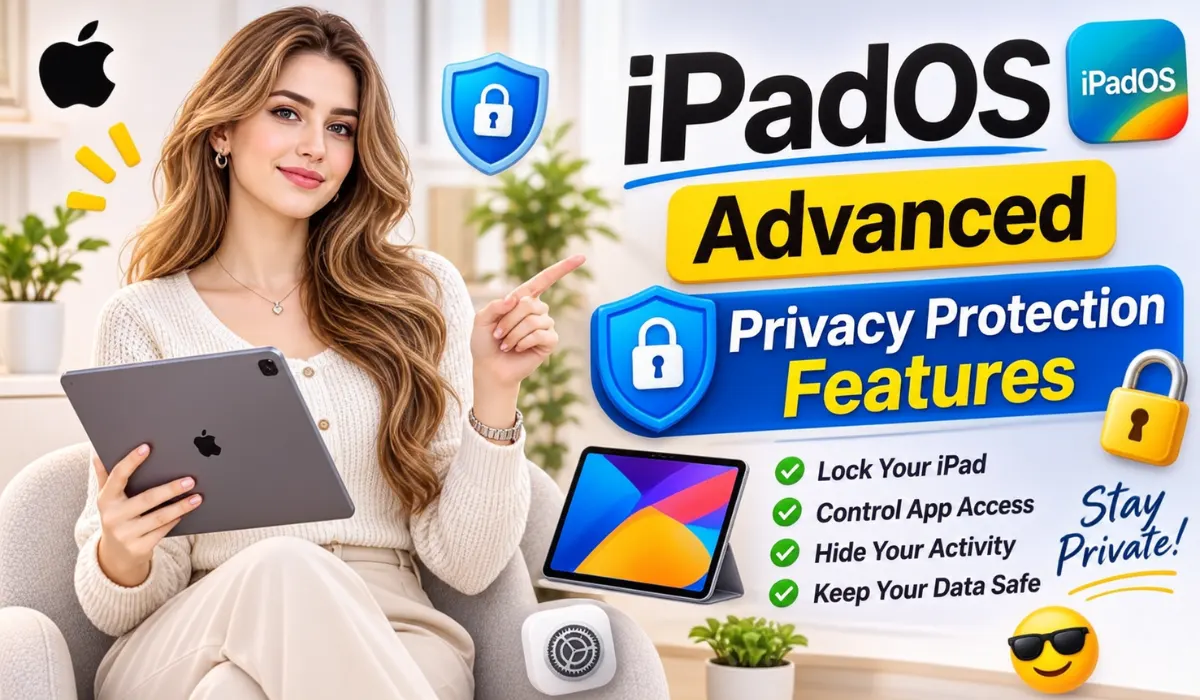
iPadOS Advanced Privacy Protection Features: Complete Setup Guide
Think about everything living inside an iPad right now. Family photos, school homework, bank logins, private messages, and work documents all sit on one thin piece of glass. If someone sneaks a peek or a sneaky app tracks every tap, personal life stops feeling private. Luckily, Apple builds strong digital locks right into the tablet. Using iPadOS Advanced Privacy Protection Features turns an everyday tablet into a safe digital vault. Even better, turning these smart tools on takes only a few minutes and requires zero tech genius skills.
"Privacy is a fundamental human right. At Apple, we design every product and service from the ground up to keep your personal information safe and put you in control." — Apple Privacy Engineering Team
This complete guide to Apple iPad privacy and security walks through every major defense tool on the device. Whether a student needs to lock down study notes or a business leader must guard company secrets, these simple steps keep personal data locked tight.
Why Should iPad Users Enable Advanced Privacy Settings?
Most tablets come out of the box ready for easy sharing and quick setup. While convenient, default settings often leave small doors open for advertisers, data brokers, and nosy onlookers. Learning why should iPad users enable advanced privacy settings helps protect both money and peace of mind.
Every time a person browses the web or opens a free game, hidden trackers try to watch what happens on screen. Companies build secret profiles showing where people shop, where they live, and what they read. Turning on iPadOS Advanced Privacy Protection Features slams the door on these digital spies.
Real-world digital safety experts see the difference every day. Security researchers frequently warn that standard cloud backups remain a top target for online hackers. Once users flip on stronger encryption, even a massive server breach cannot expose their private photos or notes.
The Real Risks of Leaving Default Settings Alone

Leaving basic settings untouched creates three big headaches for everyday tablet owners. First, Cross-Site Ad Tracking lets websites follow users from page to page, showing creepy ads for things they just talked about or searched.
Second, Cloud Data Exposure remains a serious concern under standard cloud rules. Normally, Apple holds backup keys that could theoretically unlock files if servers face legal demands or massive cyberattacks.
Third, Shoulder Surfing and Theft put local files at risk in public spaces. If someone grabs an unlocked tablet at a coffee shop or classroom, open apps immediately reveal private chats and bank balances.
Read Also: Master iPadOS Battery Optimization Settings for All-Day Power
Top 10 iPadOS Advanced Privacy Protection Features
Exploring the top 10 iPadOS Advanced Privacy Protection Features reveals just how much power sits inside the Settings app. Apple blends hardware chips with smart software so safety tools run smoothly without slowing down games or videos. Here are the best iPadOS privacy and security features available today.
1. Apple iPad Advanced Data Protection Features for iCloud
Apple iPad advanced data protection features represent the strongest cloud shield Apple offers. Normally, Apple protects 15 data types with end-to-end encryption, while keeping keys for backups and photos on its own servers. Turning on Advanced Data Protection expands end-to-end encryption to 25 data categories.
With this setting active, only the owner's trusted devices can unlock iCloud backups, Photos, Notes, Voice Memos, and iCloud Drive files. Nobody else—not hackers, not governments, and not even Apple engineers—can read those files.
2. App Tracking Transparency (ATT)
Every app on the App Store wants to know what users do after closing the app. App Tracking Transparency forces every app to pop up a clear box asking permission before tracking activity across other companies' apps and websites. Tapping "Ask App Not to Track" cuts off data brokers immediately.
3. Safari Intelligent Tracking Prevention and Fingerprinting Defense
Websites love using tiny bits of data—like screen size, installed fonts, and battery level—to create a unique "fingerprint" of an iPad. Safari fights back automatically by showing websites a simplified, generic profile so every iPad looks identical to trackers. Private Browsing tabs also lock automatically with Face ID or Touch ID when users step away.
4. Locked and Hidden Apps
Sharing an iPad with kids, friends, or coworkers happens all the time. Modern iPadOS versions let owners lock any individual app behind Face ID, Touch ID, or a passcode. Users can even hide sensitive apps inside a secret, locked folder so notifications and search results never show what is inside.
5. Passkeys for Phishing-Proof Logins
Passwords get stolen, guessed, or leaked in website breaches every single day. Passkeys replace typed passwords with a cryptographic key pair stored safely inside the iPad's hardware chip. Because the private key never leaves the tablet, fake scam websites cannot trick users into giving away their login.
"Passkeys eliminate the single weakest link in personal cybersecurity: human memory and reused passwords. Once enabled on an iPad, phishing attacks lose almost all their power." — Marcus Vance, Certified Information Systems Security Professional (CISSP)
6. Mail Privacy Protection
Marketing emails often hide invisible one-pixel images inside newsletters. The moment someone opens the email, that tiny pixel tells the sender when the email was read, how many times it was opened, and where the reader lives. Mail Privacy Protection routes email images through a proxy server, hiding the iPad's real location and blocking read receipts.
7. Lockdown Mode for Extreme Threats
Built for people who face targeted digital attacks—like journalists, activists, and business leaders—Lockdown Mode places the iPad into a strict digital fortress. It blocks most message attachments, disables complex web technologies, and stops incoming FaceTime calls from strangers. While unnecessary for daily casual use, it provides unmatched defense during high-risk travel.
8. Safety Check for Instant Access Reset
Relationships and living situations change. Safety Check gives users an emergency reset button inside Settings to review and cut off shared data fast. With just a few taps, a user can stop sharing their location, remove shared photo albums, and reset app permissions for specific people.
9. iCloud Private Relay
Public Wi-Fi at airports, hotels, and cafes makes it easy for local snoopers to see which websites someone visits. Included with any paid iCloud+ plan, Private Relay encrypts Safari traffic and sends it through two separate internet relays. The first relay knows who the user is, while the second knows what website they want—meaning neither party sees both pieces of information.
10. Hide My Email
Signing up for store discounts or online contests usually leads to endless spam. Hide My Email generates random, unique email addresses that forward messages straight to the user's real inbox. If a company sells that address to spammers, the user simply deletes the fake address with one tap.
Read Also: iPadOS Productivity Features For Professionals: Boost Your Workflow
How Can You Enable Advanced Privacy Settings on an iPad?
Knowing about these tools is great, but turning them on makes the real difference. Follow this simple advanced iPad privacy configuration guide to activate the core shields in under five minutes.
Step-by-Step: Turning On Advanced Data Protection
Before flipping this switch, make sure every Apple device signed into the same Apple Account runs updated software. Because Apple cannot recover locked data if a password is forgotten, the system requires setting up a backup recovery method first.
Start by opening the Settings app on the iPad home screen and tapping your Name / Apple Account banner right at the top left. Next, tap iCloud, scroll down, and select Advanced Data Protection.
Tap Account Recovery and choose either a trusted Recovery Contact (a friend or family member with an Apple device) or generate a 28-character Recovery Key. Write the 28-character Recovery Key on paper and store it somewhere safe, making sure never to save a screenshot of it in Photos. Finally, return to the Advanced Data Protection screen, tap Turn On Advanced Data Protection, and enter the iPad passcode to finish encrypting the cloud vault.
Step-by-Step: Blocking App Trackers and Locking Apps
Next, shut down sneaky app tracking and lock sensitive apps on the home screen. Open Settings, scroll down to Privacy & Security, and tap Tracking at the top of the menu. Toggle Allow Apps to Request to Track to OFF (gray) so every app automatically receives a "no" without annoying pop-ups.
To lock specific apps, go back to the home screen and press and hold any sensitive app icon, such as a banking app or private journal. Tap Require Face ID (or Require Touch ID) from the quick menu. Choose Hide and Require Face ID if the app should disappear completely into the hidden folder at the bottom of the App Library.
Best Ways to Protect Personal Data on iPad
Beyond big system switches, small daily habits keep personal information safe. Practicing the best ways to protect personal data on iPad ensures physical theft or accidental taps never ruin your week.
Upgrade from a 4-Digit Passcode to Alphanumeric
A simple four-digit PIN has only 10,000 possible combinations. Modern iPads default to six digits (one million combinations), which is much better. For maximum defense, open Settings > Face ID & Passcode > Change Passcode, tap Passcode Options, and pick Custom Alphanumeric Code. Mixing letters and numbers makes brute-force guessing virtually impossible.
Turn On "Erase Data" After Failed Guesses
If a thief steals an iPad, they might try guessing the passcode over and over. Scroll to the very bottom of Face ID & Passcode and switch on Erase Data. After 10 wrong passcode tries in a row, the iPad automatically wipes every single file clean.
Audit Location and Microphone Permissions
Many apps ask for exact GPS location or microphone access even when they do not need it. Open Settings > Privacy & Security > Location Services. Switch games and shopping apps to Never, and change maps or weather apps to While Using the App. Turning off Precise Location for weather and news apps gives them your general city instead of your exact street address.
Advanced iPad Security Features for Professionals and Business Users
More executives, doctors, lawyers, and remote workers use iPads as their primary laptops. Advanced iPad security features for professionals protect client contracts, financial spreadsheets, and trade secrets on the go.
iPadOS Data Protection Features for Business Users
Apple builds hardware-level encryption directly into every M-series and A-series chip. Every file saved on the iPad receives its own unique encryption key protected by the device's Secure Enclave processor. Even if someone physically removes the storage chip from the tablet, the raw data looks like random gibberish without the user's passcode.
Companies can also use Mobile Device Management (MDM) tools to separate work data from personal apps. If an employee leaves the company or loses a tablet at an airport, IT teams can remotely wipe corporate emails and files while leaving the employee's personal family photos untouched.
iPadOS Security Settings for Protecting Sensitive Files
When handling confidential PDFs, contracts, or tax records, iPadOS security settings for protecting sensitive files add vital extra layers. Start with Password-Protected Notes by opening any sensitive note in Apple Notes, tapping the Share icon, and choosing Lock Note. Locked notes use separate encryption keys and require Face ID or a custom password before opening.
For physical backups, always use Encrypted External Drives. Whenever connecting a USB-C thumb drive or SSD, format the drive using APFS (Encrypted) in the Files app so nobody can read the backup drive if it falls out of a laptop bag.
Finally, adjust AirDrop Receiving Limits before traveling. Open Settings > General > AirDrop and set receiving to Contacts Only or Receiving Off. This prevents strangers on trains or planes from beaming unwanted files onto the screen.
"In modern corporate environments, an iPad often holds just as much intellectual property as a desktop workstation. Enabling Advanced Data Protection alongside encrypted Apple Notes creates a zero-trust mobile office." — Elena Rostova, Enterprise Mobility & Security Architect
Advanced iPad Privacy Features for Students
Students carry iPads across busy campuses, libraries, and dorm rooms every day. Advanced iPad privacy features for students keep study notes, school logins, and personal messages safe from prying eyes.
Smart School Habits with iPad Privacy Controls
Students should always Lock Study and Personal Apps like banking, messaging, and private journals behind Face ID before handing an iPad to a classmate to look at a diagram. Setting up Focus Modes During Class also helps by hiding incoming text message previews on the lock screen during lectures or group study sessions.
Checking App Privacy Reports regularly is another smart habit. Open Settings > Privacy & Security > App Privacy Report to see which study apps or free games secretly contact third-party trackers in the background. Furthermore, anyone borrowing a school-owned tablet should Manage Shared iPads Properly by logging out of iCloud and Safari completely before returning it, and avoiding saving personal Passkeys on shared classroom devices.
What Happens When You Disable iPadOS Advanced Privacy Protection Features?

Sometimes users need to turn off high-security settings—for example, when connecting an older Mac that cannot run new software. Understanding how iPadOS advanced privacy protection features disable processes work prevents accidental data loss or confusion.
When a user turns off Advanced Data Protection in iCloud settings, the iPad does not delete any files. Instead, the tablet securely uploads the encryption keys back to Apple's servers, returning the account to Standard Data Protection. Everything stays accessible, though Apple once again holds the backup keys.
Step-by-Step: How to Disable Advanced Data Protection Safely
To turn the feature off safely, open Settings on the iPad, tap your Apple Account name at the top, and select iCloud. Scroll down, tap Advanced Data Protection, and select Turn Off Advanced Data Protection at the bottom of the screen.
Enter the device passcode or Apple Account password to confirm the change, then wait a few minutes while the tablet re-syncs key custody back to standard iCloud protection. If you also want to re-enable app tracking pop-ups, head to Settings > Privacy & Security > Tracking and toggle Allow Apps to Request to Track back to green.
Read Also: Top iPadOS Performance Improvements: How to Speed Up Your iPad
Common Mistakes to Avoid with iPad Privacy Settings
Even careful users sometimes trip over simple settings. Watch out for these four common pitfalls when configuring advanced privacy features available on Apple iPad.
The biggest mistake is Losing Both Recovery Methods. With Advanced Data Protection active, losing your iPad passcode, Recovery Contact, and 28-character Recovery Key permanently locks your iCloud data forever. Always keep a printed copy of the key in a locked drawer or safe.
Another frequent slip-up is Leaving Lock Screen Previews Visible. Notifications popping up on a locked screen show bank codes and text messages to anyone nearby. Go to Settings > Notifications > Show Previews and set it to When Unlocked.
Many people also hurt their security by Ignoring Software Updates. Hackers constantly look for tiny software bugs, so turning on Automatic Updates under Settings > General > Software Update ensures Apple's Rapid Security Responses install overnight.
Finally, avoid Assuming VPNs Replace Encryption. A VPN only hides internet traffic between the iPad and the VPN server. It does not encrypt iCloud backups or stop apps from reading contacts, so always use Apple's built-in privacy controls alongside any VPN.
Frequently Asked Questions
1. Are iPadOS Advanced Privacy Protection Features free to use?
Yes! Almost all core iPadOS Advanced Privacy Protection Features—including Advanced Data Protection, App Tracking Transparency, Passkeys, Locked Apps, and Safari tracking blockers—are 100% free. Only iCloud Private Relay and Hide My Email require a paid iCloud+ subscription.
2. Does turning on Advanced Data Protection slow down my iPad?
No. Modern iPads feature dedicated encryption engines inside their processors. Encrypting and decrypting files happens instantly in the background with zero noticeable impact on battery life or app speed.
3. Can Apple unlock my iPad or iCloud files if I forget my password?
If Advanced Data Protection is turned on, Apple cannot unlock your end-to-end encrypted iCloud backups, photos, or notes. You must use a trusted device passcode, your designated Recovery Contact, or your 28-character Recovery Key to regain access.
4. Which iPad models support Advanced Data Protection?
Any iPad capable of running iPadOS 16.2 or later supports Advanced Data Protection. However, every single Apple device (iPhone, Mac, or older iPad) signed into that same Apple Account must also be updated to a compatible OS version before the feature will turn on.
5. What data is NOT covered by Advanced Data Protection?
Because global email and calendar systems need to communicate with non-Apple services, iCloud Mail, Contacts, and Calendars remain under standard encryption. Everything else—including Photos, Notes, Messages backups, and iCloud Drive—gets full end-to-end protection.
6. How do I check which apps are accessing my camera or microphone?
Look at the very top right corner of the iPad screen. A green dot means an app is currently using the camera, while an orange dot means an app is using the microphone. Swipe down from the top right corner to open Control Center and see the exact name of the app using those sensors.
.